Build Your First AI Closer in Agent Studio (Step by Step)
Use the Agent Studio Training Coach to build your first AI Closer in five steps. Pick a role, set the personality, teach it Q&As and prices, set rules, test and go live.
Agent Studio is where you hire, train and tune your AI Closers. Think of it as the interview, onboarding and coaching for a new team member, compressed into one screen.
The Training Coach walks you through it in five steps. Each step has a short animation that shows what happens, plus plain-English tips. Want to see the whole thing first? Press Watch a 30-second demo in Agent Studio: a sample shop trains its Closer, a customer asks a question, a wrong answer gets fixed in one tap and the Closer goes live.
Before you start
Have three things ready:
- Your FAQ. The questions customers ask most, with your real answers.
- Your prices. Every product, with the currency.
- Your policies. Delivery, returns, payment methods, opening hours.
If you don't have these written down yet, write a knowledge base your Closer can actually use shows you how.
Step 1: Pick a role
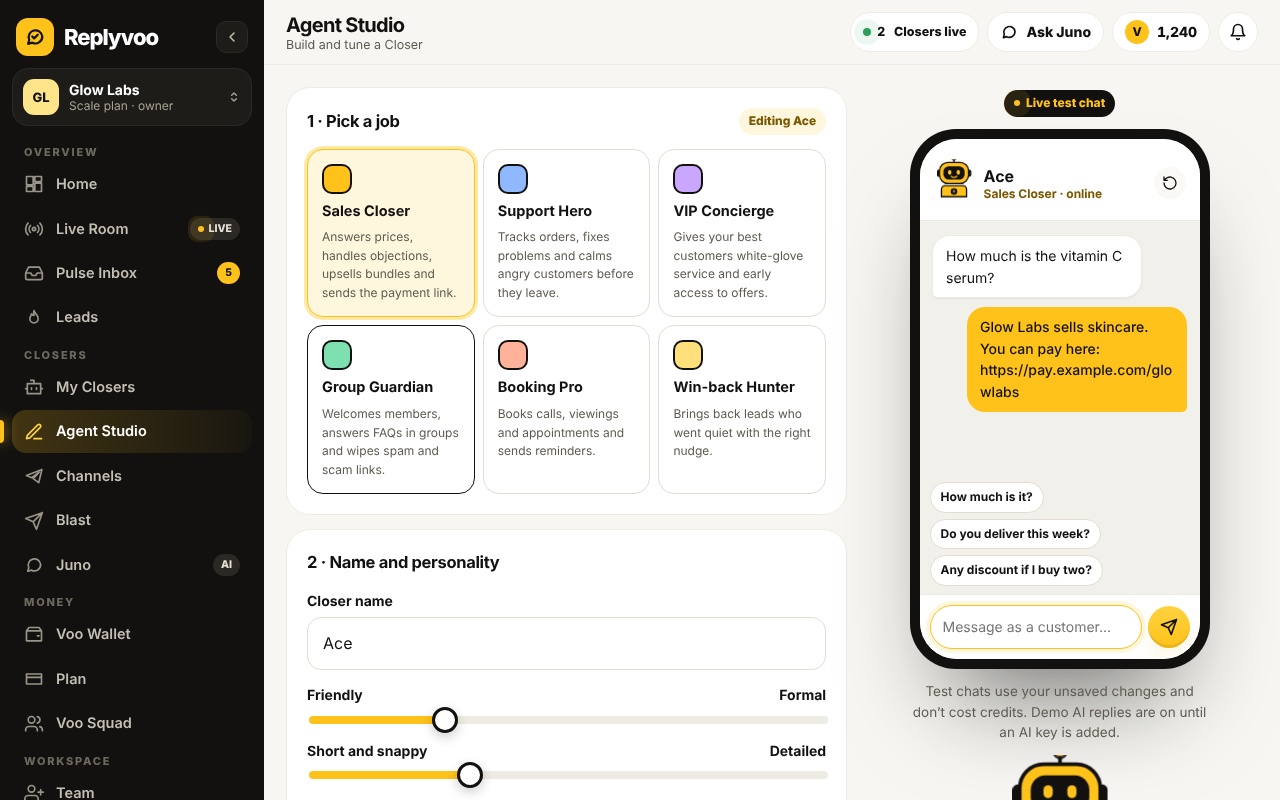
Open My Closers and press Build a Closer. Each role comes with sensible instructions and skills already set, and you can change it later.
- Ace (Sales Closer). Answers prices, handles objections, suggests bundles and sends the payment link. Your default for most shops.
- Mira (Support Hero). Order status, how-to questions, returns, complaints. Calm and clear.
- Royal (VIP Concierge). For your best customers. More personal, quicker to bring in a human.
- Bolt (Group Guardian). Works in Telegram groups. Welcomes members and works with Shield to remove spam.
- Tempo (Booking Pro). Collects details and books appointments.
- Echo (Win-back Hunter). Re-engages people who went quiet.
Step 2: Give it a personality
Name it, pick a colour for its avatar and set three sliders: Friendly ↔ Formal, Short ↔ Detailed and emoji. A live sample reply changes as you slide, so you can hear the tone before you commit.
Customers may see the name. "Maya from Glow" or simply "Ace" both work. Avoid pretending to be a real staff member: if a customer sincerely asks whether they're talking to AI, your Closer always says yes.
When you're happy, press Create & keep training. Your Closer is saved, but stays paused until you go live in step 5.
Step 3: Teach it
This is where it gets smart. Your Closer only states facts you teach it.
- Q&A. Add the questions people ask most. Tap a suggestion like "How much is it?" to start, and add other ways people ask the same thing. Paste many at once with "Q:" and "A:".
- Products. Name, exact price, currency, description, link and an in-stock switch. Or import a CSV with
name, price, description, link. - Policies. Delivery, returns, payment methods, hours and contact, each with an example.
- Import. Paste the address of your FAQ or shipping page, or choose a
.txt,.mdor.csvfile. You see a preview and choose what to keep.
Tips: write answers the way you'd say them in chat, and add prices exactly. "Delivery to Madrid is €6 and takes 2 to 3 days" beats "We offer affordable fast delivery."
Step 4: Set the rules
Like a briefing on day one:
- Always do and Never do, in plain words. "Never promise an exact delivery date." "Never discuss competitors."
- Topics to avoid and a line it always includes, like a sign-off.
- Discounts: only those in your knowledge, never, or up to a limit you set.
- Hand over to a human when the customer is angry, asks for a refund, asks for a person, asks a legal, medical or money question, orders over an amount you set, or mentions a keyword like "wholesale".
- Language: reply in the customer's language, or always in one language.
- Switch on Smart handoff and PayLink, and add your payment link.
Rules are added after Replyvoo's own safety rules, so they can never make your Closer dishonest or unsafe.
Step 5: Test & launch
The Test chat is docked next to everything you edit (on a phone, tap Test chat). It uses your unsaved changes and shows which Q&A, product or policy each reply used.
Run the one-tap scenario tests: a price question, delivery, "I want a refund!" (it should hand over), "Are you a bot?" (it should say it's an AI), a discount request (it should follow your rule) and something you haven't taught (it should say it will check with the team, not invent an answer). Each test gets a Pass or Needs attention badge.
If a reply is wrong, tap Fix this answer, write the right one and save. It becomes a correction, the highest-priority knowledge, and the very next reply uses it.
Your Training Score (0 to 100) adds it all up: personality, at least 5 Q&As, prices, the three key policies, a payment link for sales roles, rules, 3 scenario tests and no open gaps. Tap any item to jump to the right place. Aim for 80 or more.
Finally, assign a channel (connect a Telegram bot or website chat) and flip the Live switch.
After launch: Pro view, Gaps and history
Once you know your way around, switch to Pro view: tabs for Personality, Knowledge, Rules, Test lab, Gaps, Channels and History, with the test chat on the right.
- Gaps lists real customer questions your Closer couldn't answer, grouped with a count. Tap Teach the answer once and it's covered.
- Pulse Inbox has Fix this answer on every AI reply, so you can correct it while you read the chat.
- History keeps your last 10 saved versions of the personality, instructions and rules, with one-tap Restore.
- Changes to personality, rules and notes are a draft until you press Save, and your draft is kept if you close the tab.
Running more than one Closer
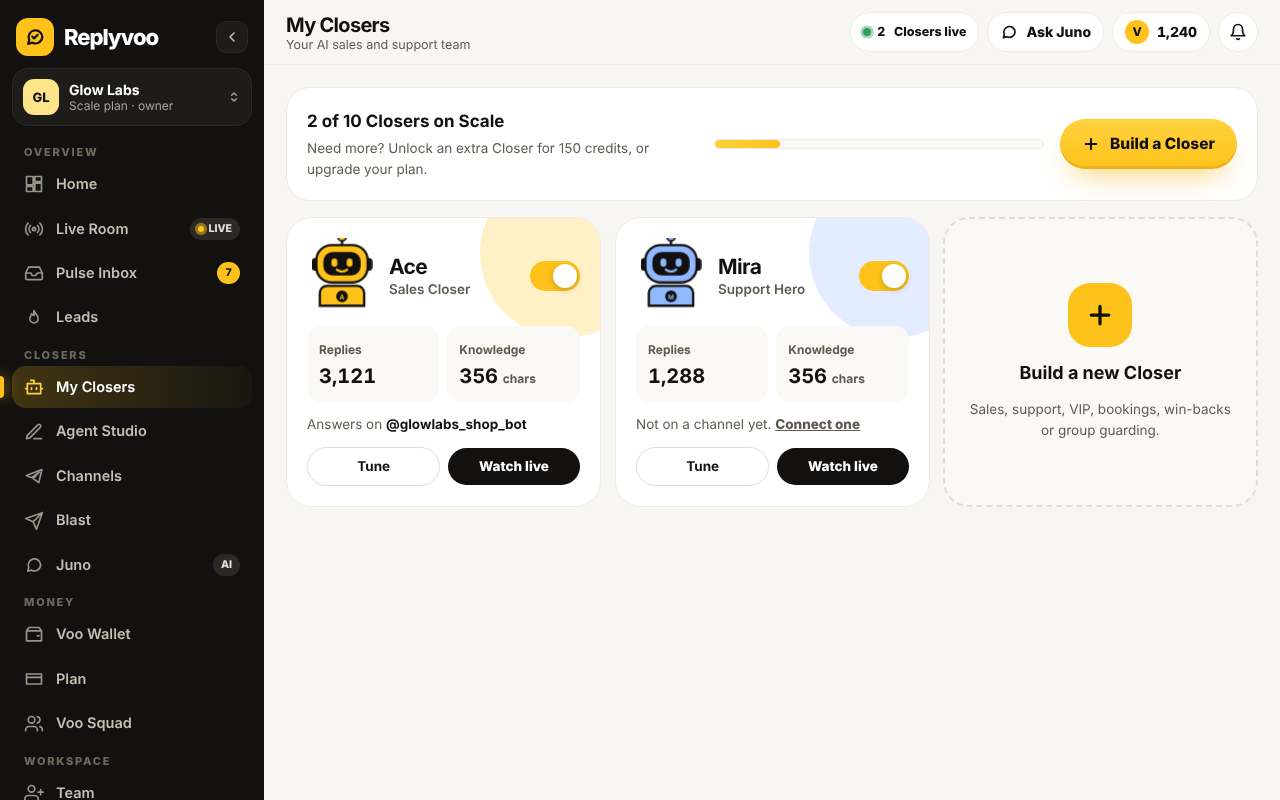
Once the first is stable, add a second with a different job: Ace on your public bot for new leads, Mira on a support bot, Bolt in your community group. Spark includes 1 Closer, Starter 2, Growth 5, Pro 10 and higher plans more. You can also add extra Closers for 150 Voo Credits a month each. See pricing explained.
Quick checklist
- Role picked to match the real job
- Name and tone fit your brand
- At least 5 Q&As, every product with its price
- Delivery, returns and payment policies
- Rules set, Smart handoff on
- Scenario tests passing, training score 80+
- Channel assigned and Live switched on
Next steps
- Start free on Replyvoo and build your first Closer
- Write a knowledge base your Closer can actually use
- Follow up automatically with HeatScore and Nudge
Your first Closer is free and live in minutes.