How to Connect a Telegram Bot to Replyvoo with BotFather
Step-by-step guide to creating a Telegram bot with BotFather, connecting its token to Replyvoo, adding it to groups and keeping your bot secure.
A Telegram bot is the quickest way to put an AI Closer in front of your customers. It has its own username, its own link, and it can talk to thousands of people at once without touching your personal account.
This guide covers everything: creating the bot with BotFather, connecting it to Replyvoo, polishing its profile so customers trust it, adding it to groups, and keeping it secure.
Why start with a bot
You can also run a Closer on your personal Telegram (see AI Closer on personal Telegram Business), but a bot is usually the better first step:
- It's free. No Telegram Premium needed.
- It's separate. Your personal chats stay personal.
- It scales. One bot can handle many conversations at the same time.
- It's shareable.
t.me/yourbotworks in ads, bios, QR codes and packaging. - It works in groups. Add it to your community and let Bolt (Group Guardian) keep things clean.
What is BotFather
BotFather is Telegram's official bot for creating and managing bots. Every Telegram bot in the world is made through it. It's free, it lives inside Telegram, and it gives you a token: a long secret string that lets software like Replyvoo send and receive messages as your bot.
If you want the technical background, Telegram documents it at core.telegram.org/bots. You don't need to read it to follow this guide.
Step 1: Create the bot
- Open Telegram on your phone or desktop.
- Search for @BotFather. Choose the one with the blue verified tick. Ignore look-alikes.
- Tap Start.
- Send
/newbot. - BotFather asks for a name. This is the display name customers see at the top of the chat. Use your brand plus a role: "Glow Skincare Help" or "Kofi Gadgets Sales".
- BotFather asks for a username. It must be unique and end in
bot. For exampleglowskincare_botorKofiGadgetsBot. - BotFather replies with a message containing your token. It looks something like this:
123456789:AAH-example-token-do-not-shareCopy the whole thing, including the numbers before the colon.
Treat your bot token like your bank PIN. Anyone with it can read your bot's chats and send messages as your business.
Step 2: Connect the token to Replyvoo
- Log in to Replyvoo at /app.
- Open Channels from the sidebar.
- Under Telegram, choose Telegram Bot.
- Paste the token and save.
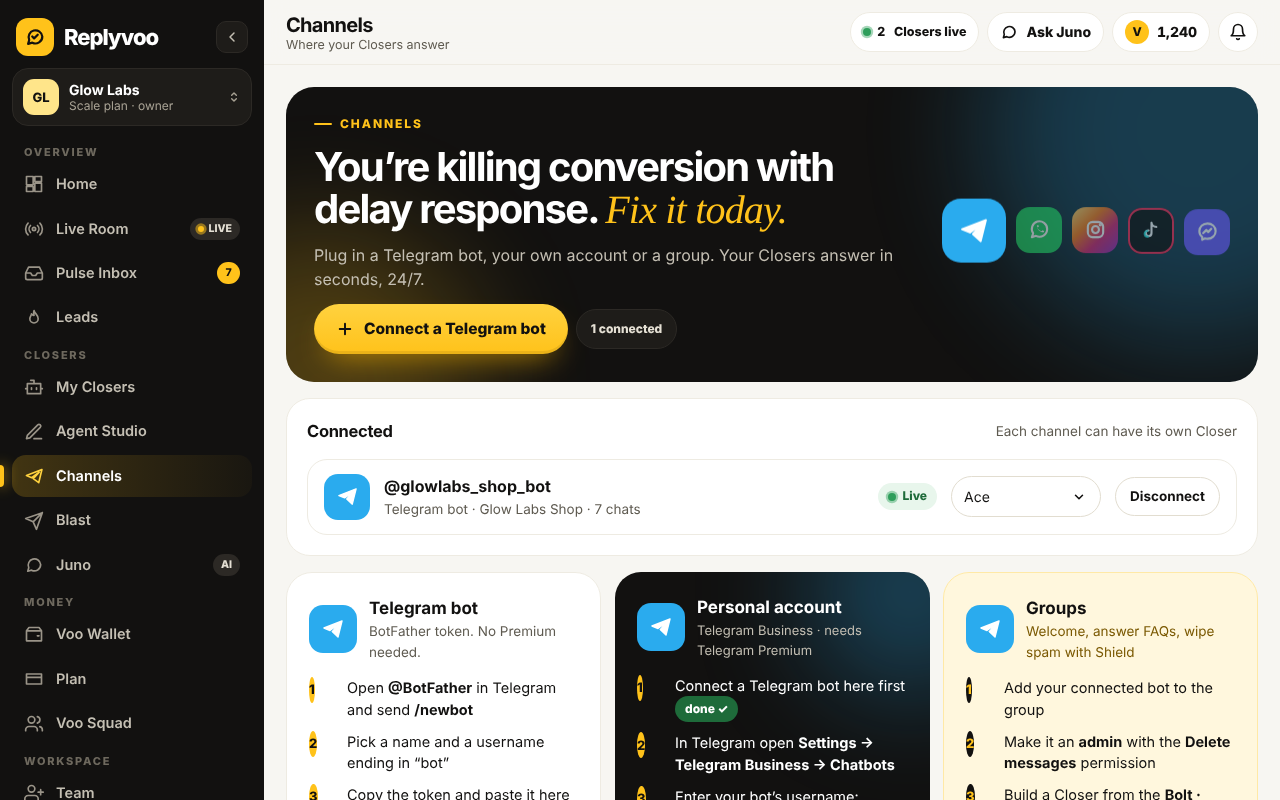
Replyvoo checks the token with Telegram and shows the bot as connected. If you see an error, it's almost always a copy problem: a missing character, an extra space, or a token from a different bot.
Step 3: Assign a Closer to the bot
A connected bot does nothing until a Closer is working on it.
- Go to Closers and open the Closer you want, or create one.
- In Agent Studio, find the Channel setting.
- Select your new bot.
- Save.
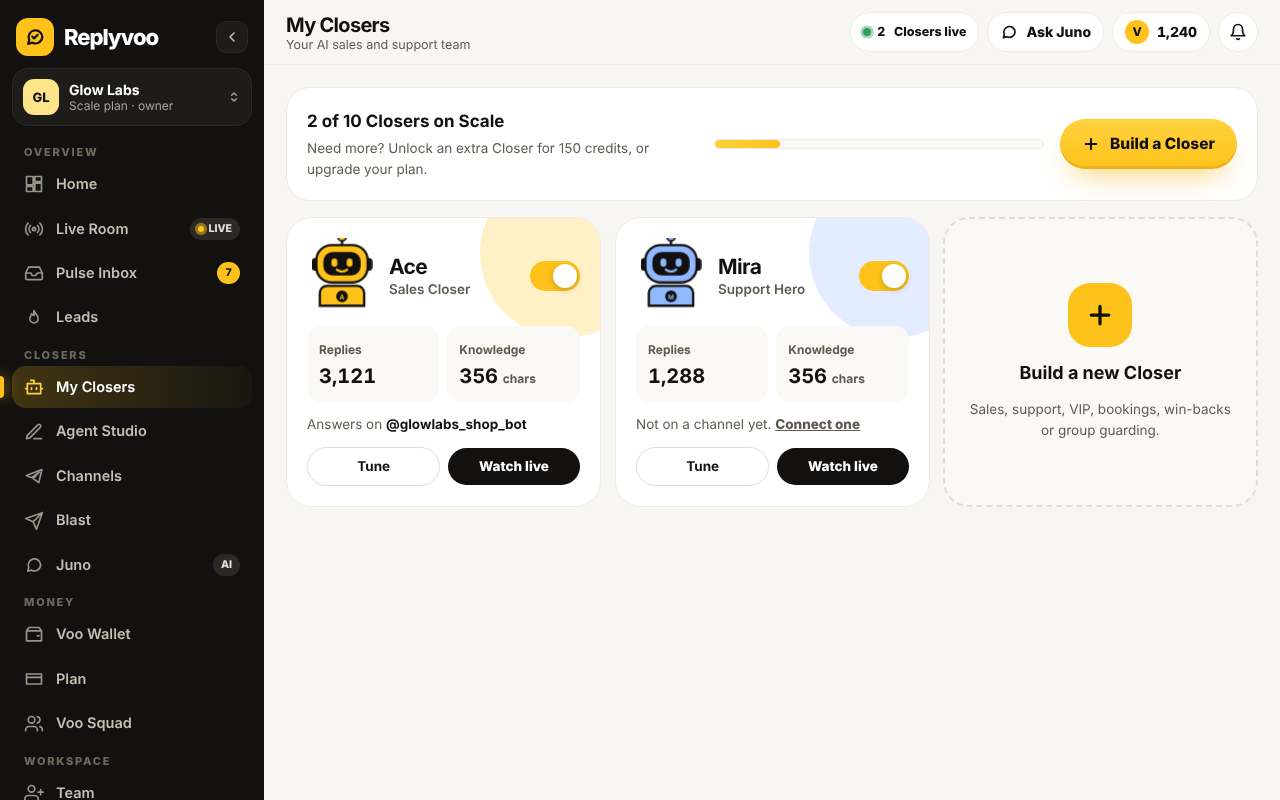
New to Agent Studio? Follow Build your first Closer in Agent Studio.
Step 4: Make the bot look trustworthy
A bot with no photo and no description looks like spam. Fix that in BotFather. Send /mybots, pick your bot, then Edit Bot:
- Edit Botpic. Upload your logo. Square, clear, readable when small.
- Edit Description. This shows on the empty chat screen before someone taps Start. Tell them what to expect: "Ask us about prices, delivery and orders. We reply in seconds, 24/7."
- Edit About. A one-line bio on the bot's profile. Add your website or Instagram handle.
- Edit Commands. Optional. You can add shortcuts like
/pricesor/track, though most customers just type naturally and your Closer handles it.
These small details raise the number of people who actually tap Start and send a first message.
Step 5: Test it end to end
- Open
t.me/yourbotusernameon your phone. - Tap Start.
- Ask a real customer question.
- Watch the reply arrive.
- Open Pulse Inbox in Replyvoo and confirm the conversation appears.
Then try the edge cases:
- Send a voice note (if Voice & Vision is on, your Closer can understand it).
- Send a photo of a product.
- Ask something your knowledge base doesn't cover and check that Smart handoff passes it to you.
Adding your bot to a Telegram group
If you run a community, a VIP signals group, a customer group or a class, your bot can work there too.
- In the group, open Group Info and choose Add Members.
- Search for your bot's username and add it.
- Promote it to admin if you want it to delete spam or manage members. Give only the permissions it needs.
- In Replyvoo, make sure the Closer working the group has the right job. Bolt (Group Guardian) is built for this, and Shield blocks spam links and floods.
One setting to know about: Telegram bots have privacy mode on by default, which means in groups they only see commands and messages that mention them or reply to them. If you want your Closer to read every message in the group (for moderation, for example), turn privacy mode off in BotFather: /mybots → your bot → Bot Settings → Group Privacy → Turn off. Then remove and re-add the bot to the group so the change takes effect.
Keeping your bot secure
- Never paste the token in chats, screenshots or shared docs.
- If it leaks, revoke it. In BotFather:
/mybots→ your bot → API Token → Revoke current token. Then paste the new token into Replyvoo Channels. - Limit who has access to your Replyvoo account. Give team members their own logins rather than sharing yours.
- Read the rules. Keep your bot within Telegram's terms and our acceptable use policy.
Troubleshooting
The bot doesn't reply. Check that a Closer is assigned to the bot and that AI replies are on for that chat in Pulse Inbox. Also confirm the bot shows as connected in Channels.
"Invalid token" when connecting. Copy the token again from BotFather. Make sure you didn't grab a token for another bot.
The bot replies in groups only sometimes. That's privacy mode. See the group section above.
Replies stopped suddenly. Check your conversation allowance in the Command Center. If you've used your plan's conversations, top up Voo Credits in the Voo Wallet or turn on Auto Top-up. See how pricing works.
Someone else changed the bot. Revoke the token immediately and reconnect.
Where to share your bot link
Your bot's link is t.me/yourbotusername. Put it in:
- Social bios and link-in-bio pages
- Website contact buttons
- Ad creatives and landing pages
- Printed QR codes on packaging and flyers
- Email signatures and invoices
If you're running paid ads that send people to Telegram, pair the bot with Joinvoo so you can see which ads bring real people, not just clicks.
Next steps
- Start free on Replyvoo and connect your bot in under five minutes
- Build your first Closer in Agent Studio
- Learn the full setup from sign-up to first reply
Your first Closer is free and live in minutes.